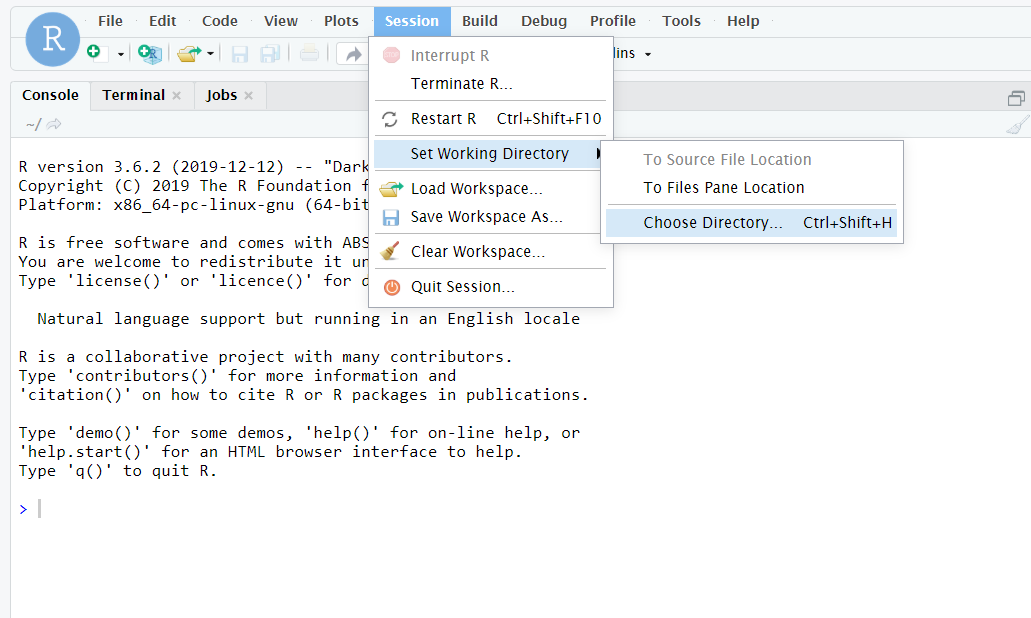
To change your working directory, click Session > Set Working Directory > Choose Directory. Bear in mind that these will be locations on Beocat.
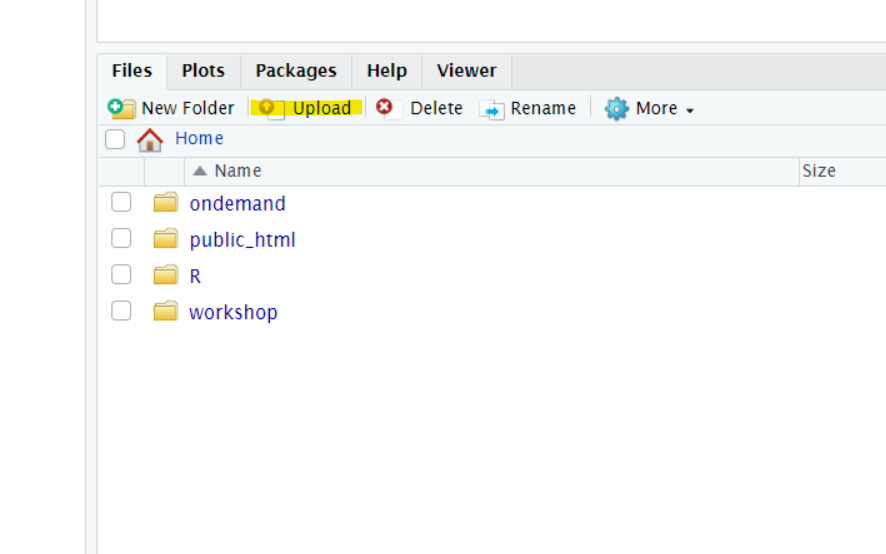
 To move your scripts and data onto Beocat, you can click “upload” in your files window.
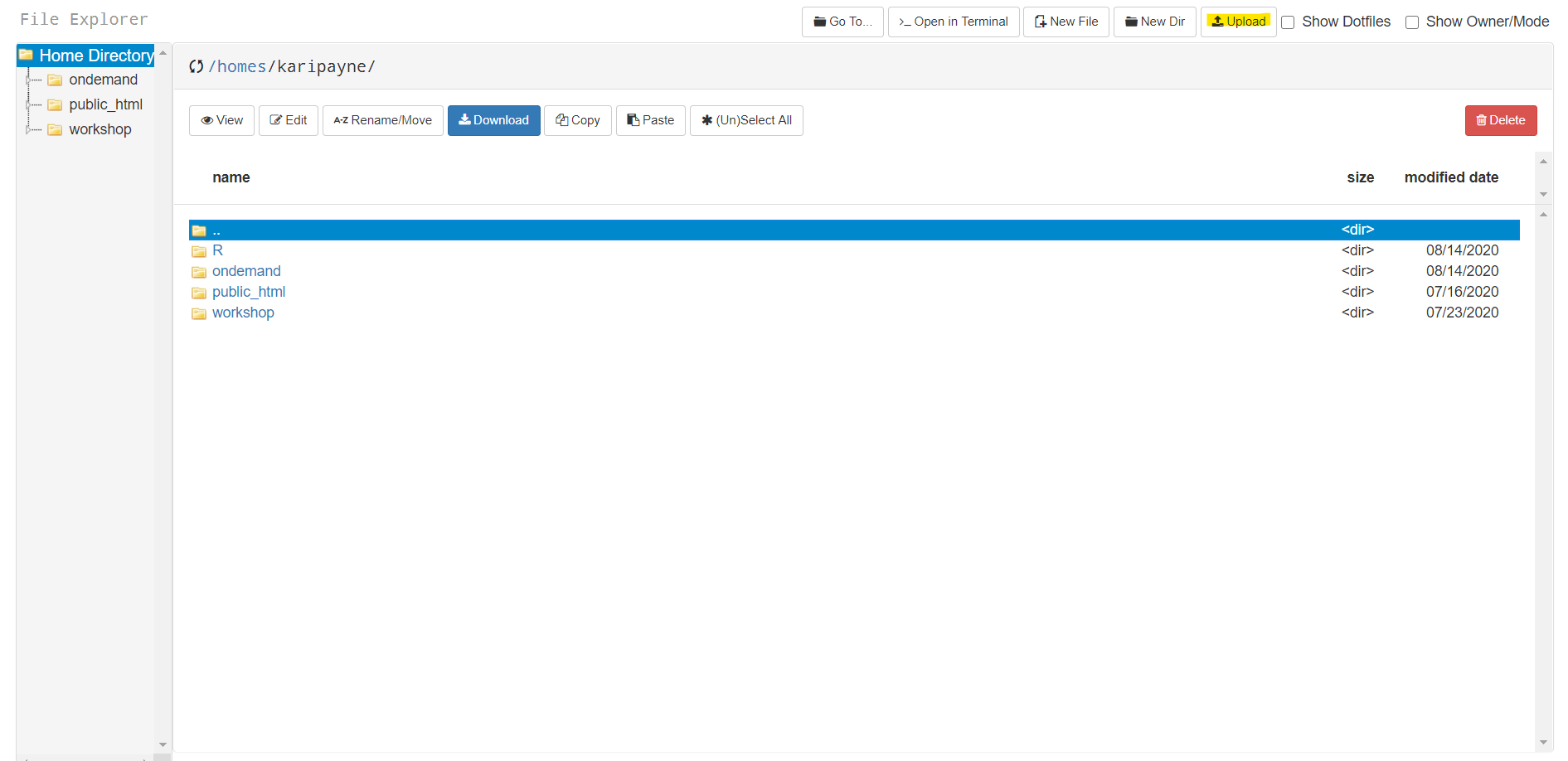
 You can also upload these ahead of time in your file explorer, accessible by clicking “Home Directory” under “Files” at the top of the OpenOnDemand main page.
There, you will see a similar upload button.
Note: if you are running analyses that require the input and output of many different files and the standard file system is too slow for your work, consider using the scratch or fastscratch file system. More information can be found on the AdvancedSlurm page.
Exercise:
Download example data “admissionsData” and script “exampleScript” here and here, and move them onto Beocat.